If you want to speed up Windows 11, you have come to the right place. Over time, every operating system tends to slow down, and Windows 11 is no exception. If you have noticed that your computer has become sluggish, applications take too long to open, or you experience lag during your workflow, it is time to optimize your system. In this article, we will discuss the most effective ways to restore and boost your PC’s performance.
Why Windows 11 Slows Down
It is common to wonder why your PC loses speed over time. As you install new applications, they often add background processes, temporary files, and registry entries. Additionally, accumulated system updates and fragmented data can put extra load on your hardware. Understanding these factors is the first step toward maintaining a healthy and fast operating system.
Manage Startup Applications to Speed up Windows 11
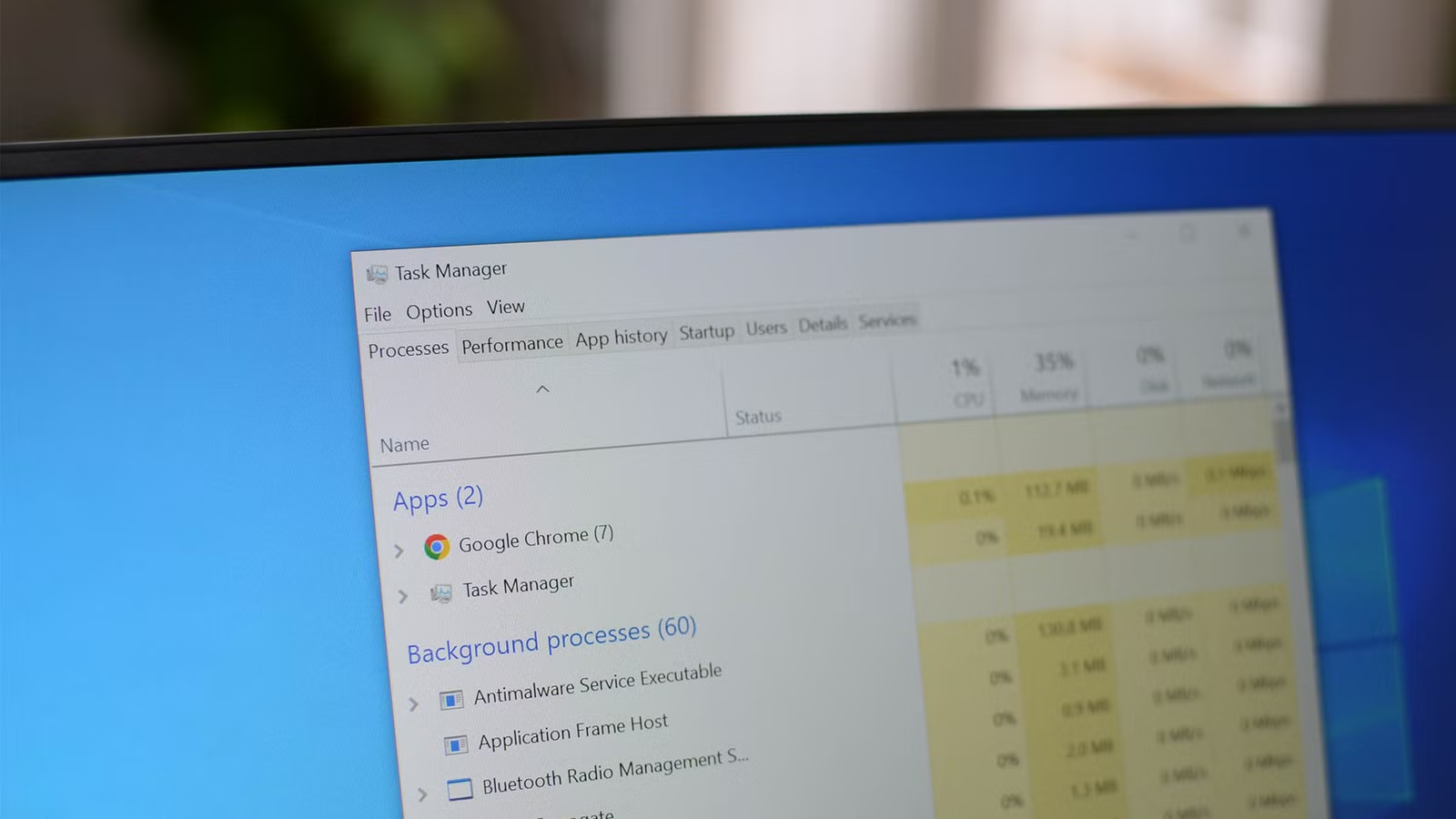
Many apps launch automatically in the background when you turn on your computer, consuming your RAM and CPU resources unnecessarily.
- The Solution: Press
Ctrl + Shift + Escto open Task Manager. Go to the Startup (or Startup apps) tab and disable any programs that are not essential for your immediate workflow.
Remove Unnecessary Software
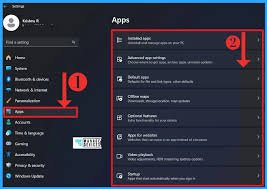
We often install programs that we only use once. These apps not only take up disk space but can also drag down system performance. Removing unused apps is an easy way to speed up Windows 11.
- The Solution: Go to Settings > Apps > Installed apps and uninstall anything you no longer use.
Optimize Your Disk
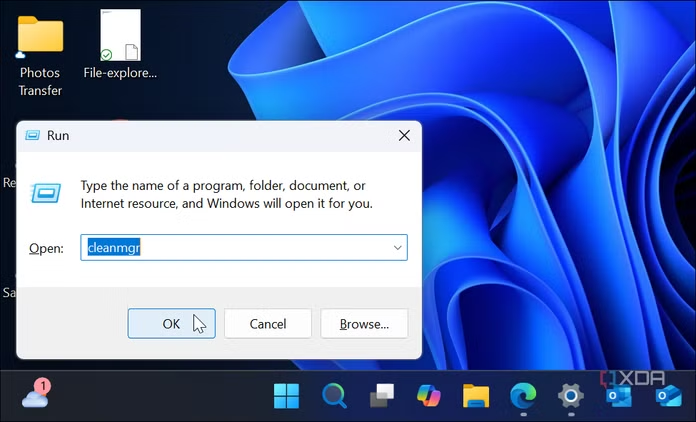
If your C: drive is nearly full, the system cannot function optimally due to a lack of temporary memory.
- The Solution: Use the Disk Cleanup tool to clear out temporary files. Additionally, ensure that your SSD has at least 15–20% free space to maintain healthy speeds.
Adjust Power Settings
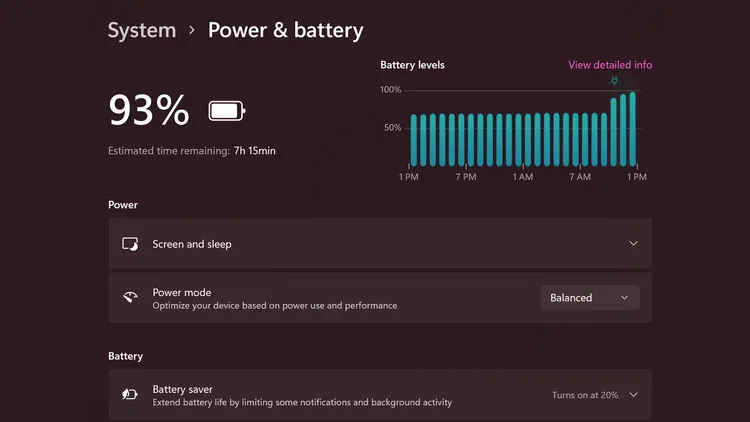
Windows 11 is often set to “Balanced” mode by default, which can limit your processor’s power.
- The Solution: Go to Settings > System > Power & battery and select the Best performance mode. This is particularly noticeable on laptops.
Simplify Visual Effects
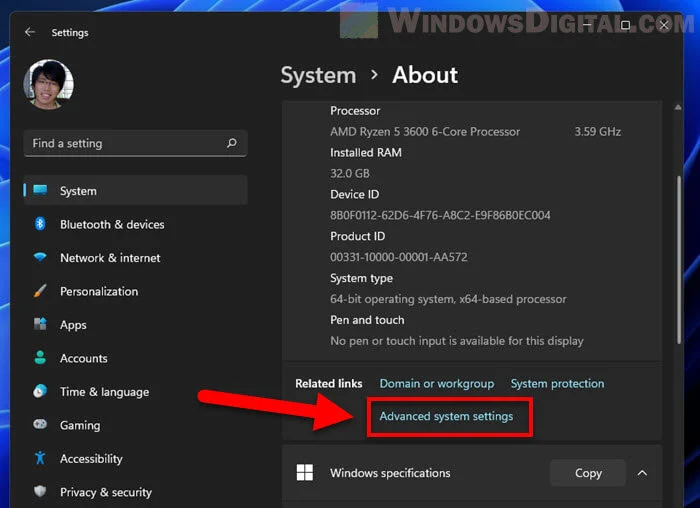
Windows 11’s animations and transparency effects look great, but they require graphics resources. On older or weaker hardware, turning these off can provide a significant speed boost.
- The Solution: Type
View advanced system settingsin the search bar, go to Performance > Settings, and select Adjust for best performance.
Keep Your System Updated
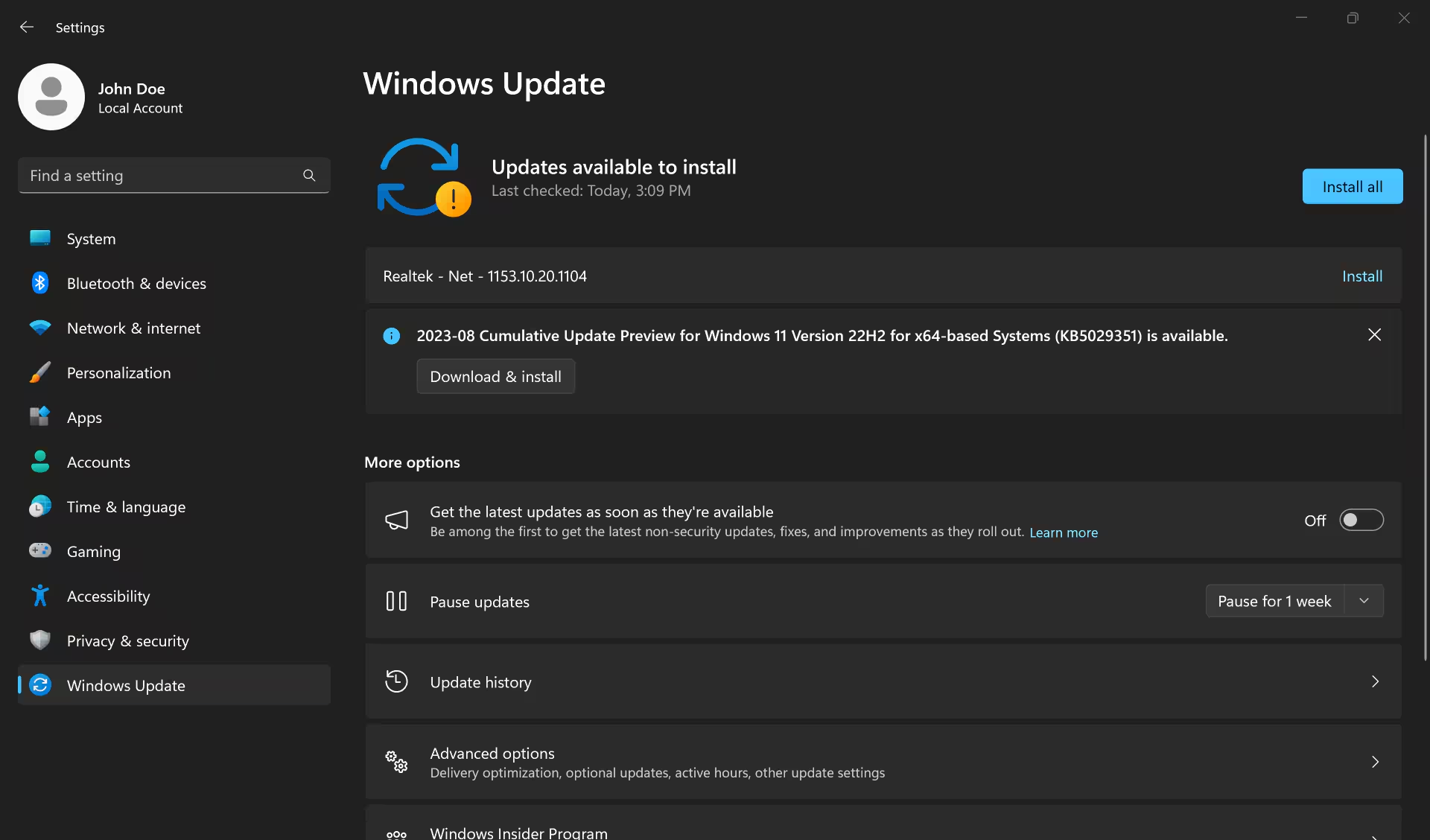
Sometimes, a slow system is caused by outdated drivers or security vulnerabilities.
- The Solution: Regularly check Windows Update to keep your system current and perform a full scan with Windows Security to ensure no malware is running in the background.
Important: Keep Your Data Safe
Before performing any system optimizations or removing software, it is a good practice to back up your important files. You can use an external hard drive or a cloud service like OneDrive to ensure your data is safe. Additionally, if you are unsure about removing a specific application, search online to check if it is essential for Windows functionality.
Monitor Your Hardware Health
Additionally, consider checking your hardware health periodically. Sometimes, simple tasks like cleaning your laptop’s vents from dust can prevent overheating, which is a major cause of performance throttling. If your computer still feels sluggish after all these software optimizations, it might be time to look into hardware upgrades. Adding more RAM or switching to a faster SSD drive can provide a massive speed boost that no software setting can replicate
Conclusion
Your computer’s speed largely depends on how well you manage it. By following these simple steps, you will notice that Windows 11 runs faster and more stably. Remember, if your hardware resources are very limited, upgrading your RAM or replacing an old HDD with an SSD is often the most effective long-term solution. I hope these tips helped you speed up Windows 11 and improved your daily workflow.
For further technical assistance, you can always visit the Microsoft Support page for more detailed documentation